
Core features
System Proxy vs TUN Mode: Which One Should You Use?
The most-asked question from new Clash Verge users. Short version: for everyday browsing, System Proxy is enough; you only need TUN when games, terminals or UWP apps must go through the proxy too. Here's why.
System Proxy: a polite suggestion
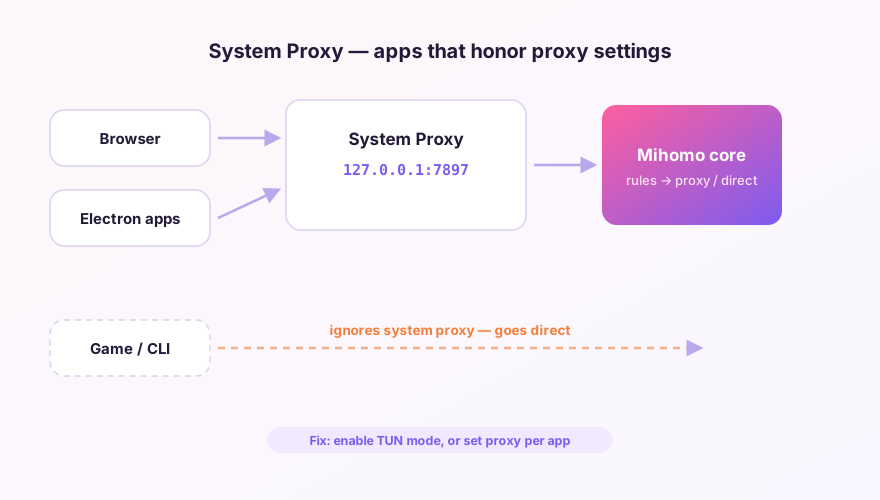
Enabling System Proxy just writes one line into your OS network settings: "HTTP/SOCKS proxy at 127.0.0.1:7897". Well-behaved software — browsers, Electron apps — obeys. But plenty of programs never read that setting: almost all games, many command-line tools (curl wants env vars, git wants its own config), and various legacy apps. Their traffic keeps going direct.
The upside: zero overhead, instant toggling, no admin rights needed.
SponsoredWhere does the subscription link come from?Our partner provider gives you 1 GB of high-speed Hong Kong data at signup — import it in one click.Get high-speed nodesTUN mode: owning the road
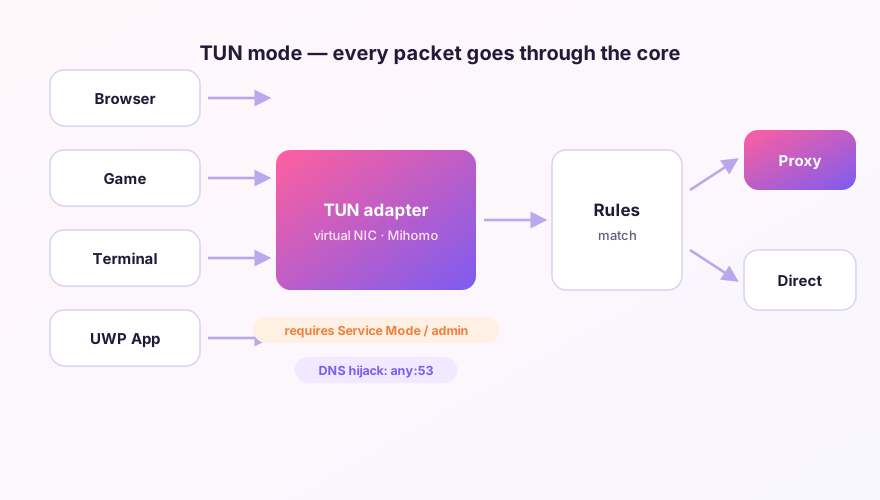
TUN mode creates a virtual network adapter and points the system's default route at it. Any program that touches the network — willing or not — has its packets pass through the Mihomo core and its routing rules. Apps can't opt out, because they can't even tell a proxy exists.
The cost: a one-time service-mode install (creating adapters needs admin rights — see the service guide), slightly higher CPU use, and occasional route conflicts with VMs or other VPN software.
Decision table
| Scenario | Use |
|---|---|
| Browsing, streaming, research | System Proxy |
| Steam / game traffic | TUN (see the gaming guide) |
| git / npm / docker in a terminal | TUN, or set env vars per tool |
| Microsoft Store (UWP) apps | TUN, or a loopback exemption |
| Laptop battery / minimal footprint | System Proxy |
Running both at once is allowed but pointless — it just muddies the water when you debug traffic paths. Pick one.
Windows 64-bit installer · v2.5.7 · free & open source