
Troubleshooting
Fixing Service Mode Installation Failures
Service mode is TUN's prerequisite — a system service that performs the privileged work on the app's behalf. If it won't install, the TUN switch stays grey. Failures come down to three causes: permissions, leftovers, or interference.
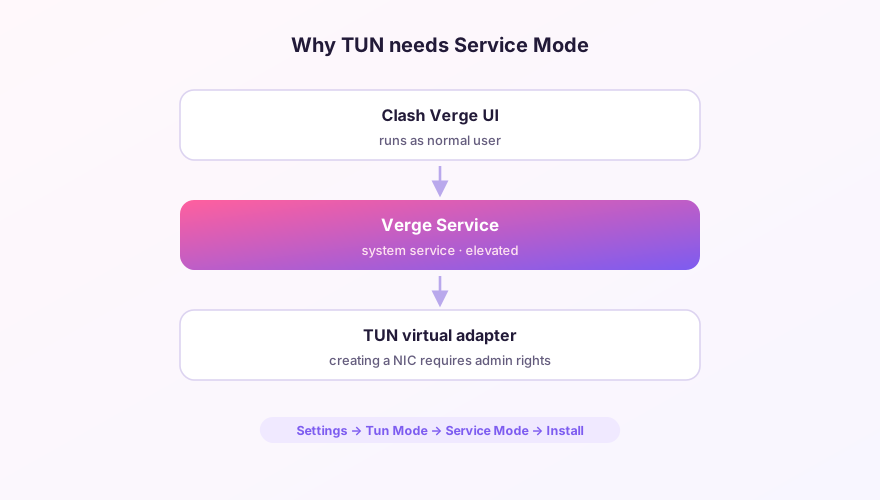
Fix sequence (try in order)
1. Reinstall as administrator
- Fully quit Clash Verge (tray icon → Quit);
- Right-click the app icon → Run as administrator;
- Settings → Service Mode: uninstall, then install. This alone resolves most cases.
2. Purge a half-dead service entry
A broken previous install can block every reinstall attempt. In an elevated PowerShell:
sc.exe stop clash_verge_service
sc.exe delete clash_verge_service
Then install again from inside the app.
3. Check the antivirus
"A program registering a system service" is exactly what security suites watch for. Check your AV's blocked-actions log, add the Clash Verge install folder to exclusions, retry. Real-time protection modules are the usual culprits.
4. Avoid non-ASCII install paths
Install paths containing non-Latin characters occasionally break service registration. Reinstalling to the default path rules this out.
SponsoredWhere does the subscription link come from?Our partner provider gives you 1 GB of high-speed Hong Kong data at signup — import it in one click.Get high-speed nodesVerify
sc.exe query clash_verge_serviceRUNNING means healthy — the TUN switch should now respond. If not, grab the exact error from the Logs page and match it against the error reference.
TUN suddenly dead after a version upgrade? Uninstall + reinstall the service first — a new service binary with a stale registration is a classic post-upgrade condition.
Windows 64-bit installer · v2.5.7 · free & open source