
Setup
Uninstall Clash Verge Cleanly and Restore Your Network
Uninstalling Clash Verge straight from the control panel without preparation leaves two traps: your system proxy still points at a dead 127.0.0.1:7897 (no internet after uninstall), and an orphaned background service. Do it in this order instead.
Before uninstalling: restore the network
- In Clash Verge Settings, switch off System Proxy and TUN Mode;
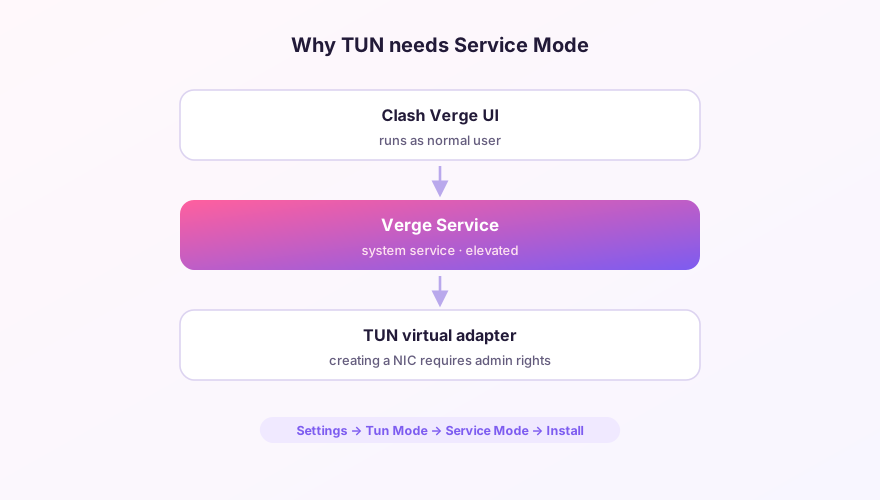
- If you ever installed service mode, uninstall it first (Settings → Service Mode);
- Disable autostart, then quit the app (tray icon → Quit).
Uninstall
Windows: Settings → Apps → Installed apps → Clash Verge → Uninstall. macOS: drag the app from Applications to Trash. Linux: sudo apt remove clash-verge or your package manager's equivalent.
Remove leftover data
The uninstaller keeps user data on purpose (so a reinstall keeps your profiles). To wipe everything, delete:
- Windows:
%APPDATA%\io.github.clash-verge-rev.clash-verge-rev - macOS:
~/Library/Application Support/io.github.clash-verge-rev.clash-verge-rev - Linux:
~/.local/share/io.github.clash-verge-rev.clash-verge-rev
No internet after uninstalling?
That's the un-restored system proxy. Windows: Settings → Network & Internet → Proxy → turn off "Use a proxy server". macOS: System Settings → Network → Details → Proxies → uncheck everything. Also check browser proxy extensions (SwitchyOmega and the like) if you use any.
Reinstalling just to fix a problem? Don't delete the data folders — your profiles and settings will be waiting when the fresh install starts. The cases where wiping data actually helps are covered in the error reference.
Windows 64-bit installer · v2.5.7 · free & open source