
Core features
Rule, Global and Direct Modes Explained
The three tabs at the top of the Proxies page — Rule, Global, Direct — decide where traffic goes once it enters the core. Being in the wrong mode is the number-one cause of both "proxy is on but traffic goes direct" and "why are local sites suddenly slow".
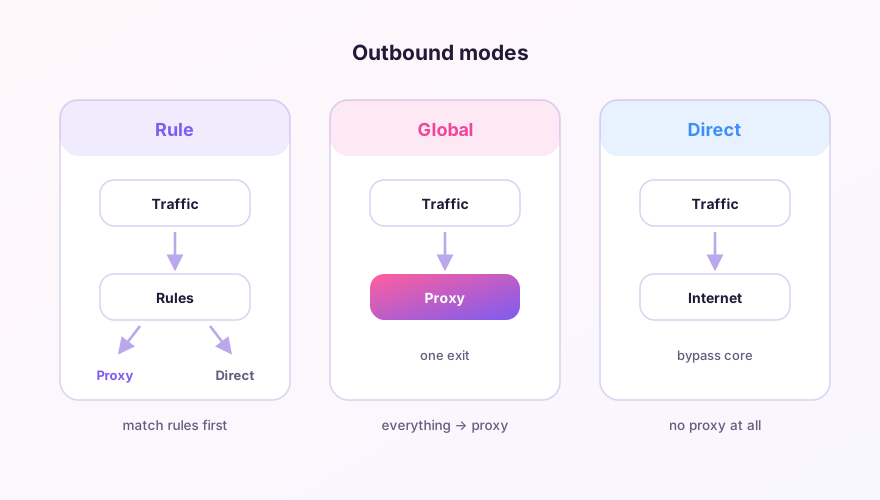
Rule mode: the default, and the right default
Every connection walks the rule list top to bottom: hit DOMAIN-SUFFIX,google.com,PROXY and it goes to the proxy group; hit GEOIP,CN,DIRECT and it goes direct; fall through everything and the final MATCH rule catches it. This is how "local traffic direct, foreign traffic proxied" works. Stay in this mode day-to-day.
Global mode: everything through the proxy
Rules are skipped; every connection goes to the node you selected. Two legitimate uses: quickly testing whether a problem is rule-related (works in Global but not Rule = your rules are wrong), and networks where genuinely all traffic needs proxying. Remember that in Global mode, local websites also detour through your node — usually slower.
Direct mode: the core becomes a pass-through
No traffic uses any node; everything leaves your machine directly. The difference from quitting Clash Verge: the local port stays open, so apps configured for 127.0.0.1:7897 don't start throwing errors. Handy when you briefly need the proxy "off" without touching app configs.
Practical notes
- Right-click the tray icon to switch modes without opening the window;
- Debugging one unreachable site? Try Global once — if it loads, fix your rules (rule-set primer);
- Mode switches don't affect connections already open — hit the broom icon on the Connections page to force everything onto the new mode.
Mode is runtime state: switching is instant, needs no core restart, and never modifies your config files.
Windows 64-bit installer · v2.5.7 · free & open source