
Core features
What the Latency Numbers Really Mean
Click the lightning bolt on the Proxies page and every node gets a millisecond figure. Most people read it as ping. It isn't — and knowing what it actually measures saves you from several wrong conclusions.
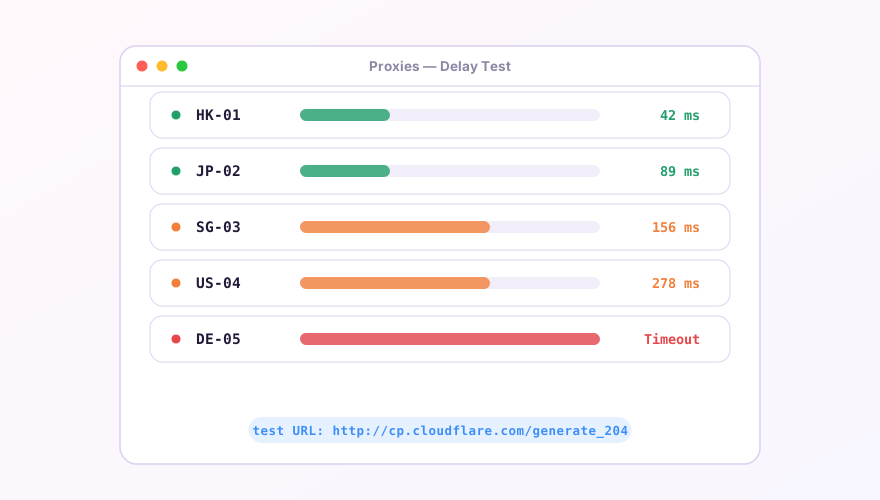
What's being measured
Verge sends an HTTP request through the node to the test URL (default http://cp.cloudflare.com/generate_204) and times the whole exchange: you → node, the proxy handshake, node → test server, and back. That's why it's bigger than a raw ping — and why it's more honest, because it reflects what real usage feels like.
Reading the colors
- Green (<200ms) — browsing feels instant;
- Yellow (200–500ms) — usable, slight pause on page loads;
- Red / Timeout — node unreachable, or the test URL is blocked on the node's side.
Low latency does not mean high bandwidth. A 45ms node can still choke on 4K video — latency measures response time, video needs throughput. The only bandwidth test that counts is running a speedtest through the node.
Changing the test URL
Settings lets you customize the latency test URL. Two rules of thumb:
- Use a lightweight 204 endpoint (
http://www.gstatic.com/generate_204or the Cloudflare one) — near-zero traffic cost; - Pick by question: "how fast is Google via this node" → gstatic; "is this node alive at all" → Cloudflare, which is reachable in more regions and won't falsely flag nodes dead.
Every node timing out at once almost never means all nodes died. It's your local network or an expired subscription — check basic connectivity first, then the subscription guide.
Windows 64-bit installer · v2.5.7 · free & open source