
Core features
Autostart and Silent Launch
The ideal proxy client is invisible: the machine boots, the proxy is already live in the tray, and you never think about it. Three switches in Clash Verge get you there.
The three-switch setup
All on the Settings page:
- Auto Launch — on. Registers a system startup entry (Task Scheduler/registry on Windows, Login Items on macOS);
- Silent Start — on. Skips the main window on launch and goes straight to the tray. Pair it with autostart unless you enjoy a window popping up every boot;
- System Proxy — leave it on when you quit; the state is remembered and restored on next launch.
Tray shortcuts
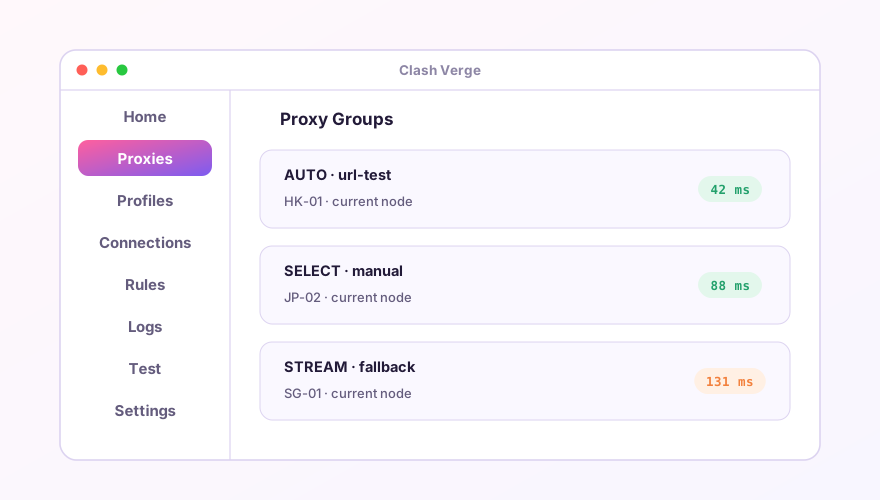
Right-click the cat icon: switch Rule/Global/Direct, toggle System Proxy and TUN, change nodes — all without the main window. Add global hotkeys and the UI becomes optional.
When autostart fails
- Windows: "optimizer" and security suites love disabling startup entries. Check Task Manager → Startup apps for Clash Verge marked Disabled and re-enable it. Still nothing? Toggle Auto Launch off and on to re-register the entry;
- After installing service mode: rare start-order races between service and app — reinstalling the service (Settings → Service Mode) clears it;
- macOS: System Settings → General → Login Items — confirm Clash Verge is present and enabled.
Tip
Laptop users: also enable the lite-mode-on-close option (v2.x) so the UI process dies when the window closes and only the core keeps running — roughly halves memory use. Details in memory optimization.
Don't have Clash Verge yet?
Download v2.5.7Windows 64-bit installer · v2.5.7 · free & open source