
Advanced
The External Controller: Driving the Core From Another Panel
The built-in interface is fine day to day, but some jobs suit an external panel better: managing a core running on another machine, using a different web UI, or scripting node switches. All of that rides on the external controller — an HTTP API the core exposes.
Enable it and set a secret
The most predictable place to declare it is the Merge section of the global extended config:
external-controller: 127.0.0.1:9097
secret: "generate a random string here"
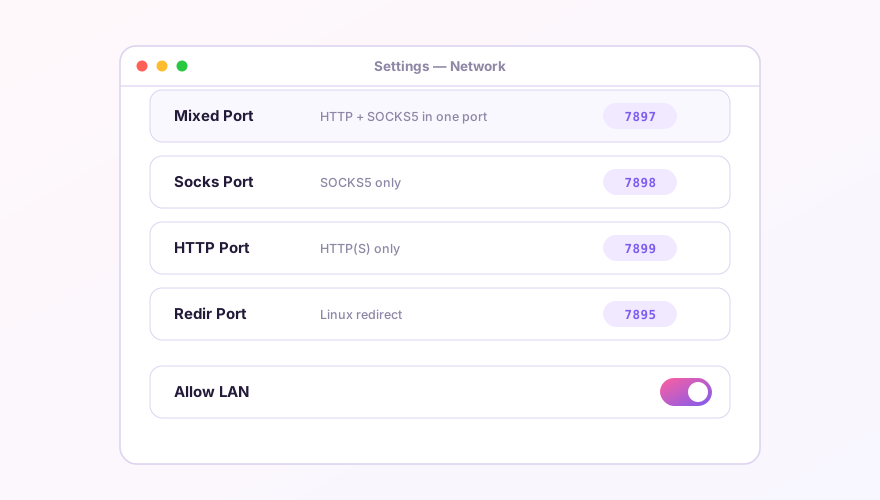
Pick any free port that doesn't collide with your mixed port — see port conflicts if it does. Always set a secret. This API can rewrite the config, switch nodes and read your connection list; it is a remote control for the core.
SponsoredWhere does the subscription link come from?Our partner provider gives you 1 GB of high-speed Hong Kong data at signup — import it in one click.Get high-speed nodesConnecting a third-party panel
Open the panel in a browser and fill in three fields: address, port, secret. Once connected you get live traffic, the connection list, logs and proxy groups — largely the same feature set as the built-in UI, with the advantage of working remotely.
If you do expose it, don't cut corners
Changing the listen address to 0.0.0.0 makes it reachable from the LAN — and also means every device on that subnet can try guessing your secret. At minimum:
- Use a random secret of 16 characters or more, not
123456; - Only enable it on networks you trust; never expose it straight to the internet;
- Set it back to
127.0.0.1when you're done.
A panel changes the core's runtime state; it does not write back to the profile. Restart the core or switch profiles and the change is gone — anything permanent still belongs in the extended config.
Windows 64-bit installer · v2.5.1 · free & open source