
Advanced
Share Your Proxy on the LAN: Phones and TVs via Your PC
A TV box that can't install proxy apps, an iPhone you'd rather not buy another client for — if they share a Wi-Fi network with your computer, they can simply borrow Clash Verge's proxy.
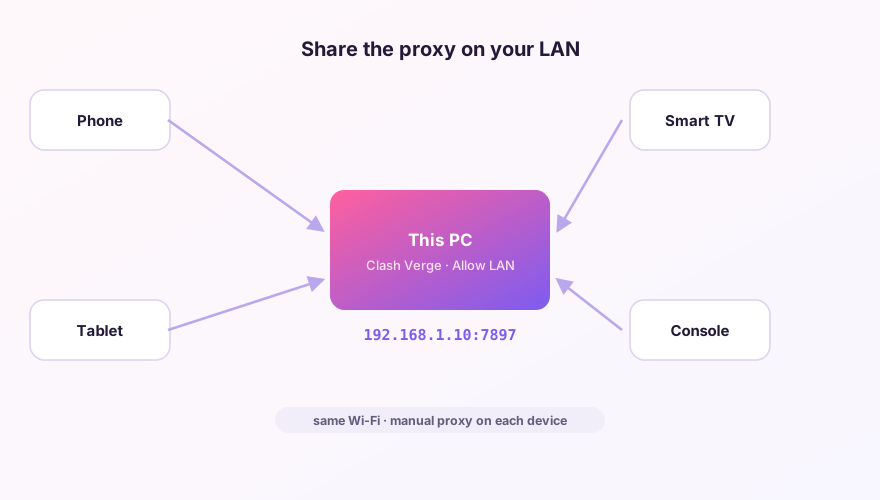
On the PC: three steps
- Settings → Ports: enable Allow LAN;
- Find the PC's LAN address: run
ipconfigand read the IPv4 line — typically192.168.x.x; - Let it through the firewall: Windows asks the first time — allow on Private networks. If no prompt appeared, add an inbound rule for verge-mihomo manually.
On each device
- iPhone / iPad — Settings → Wi-Fi → (i) on the current network → Configure Proxy → Manual; server = PC's IP, port
7897; - Android — Wi-Fi details → Modify network → Advanced → Proxy: Manual, same values;
- Android TV / boxes — if the system hides proxy settings, use a browser that supports HTTP proxies, or set a global proxy via adb;
- Another computer — manual system proxy pointed at IP:7897.
Can't connect? Check in this order
- Can the devices ping each other? Router "AP isolation" blocks all client-to-client traffic — turn it off in router settings;
- Is the firewall really letting it through? (One quick test with the firewall temporarily off tells you.);
- Did the PC's IP change? DHCP reshuffles addresses — reserve a static IP for the PC in your router.
Warning
Allow LAN means anyone on the network can use your proxy. On dorm or office Wi-Fi, pair it with the access whitelist in Settings — or switch it off when done.
Don't have Clash Verge yet?
Download v2.5.7Windows 64-bit installer · v2.5.7 · free & open source